How to Set a Custom Ringtone on iOS Without a Mac or iTunes
This easy iOS ringtone guide shows you how to assign a custom ringtone on your iPhone—no Mac or iTunes required! Follow these steps to set any song or sound as your ringtone using The Ringtone Cutter App and GarageBand. Perfect for anyone who finds iPhone ringtone setup confusing.
Note: This guide works for both manually trimmed ringtones and AI-generated ringtones. AI-generated ringtones are saved as MP3 files and can be converted to .m4r format using the same process.
- Save .m4r to Files. Download The Ringtone Cutter App to export any local music files to .m4r for your iPhone custom ringtone—no Mac or iTunes needed.
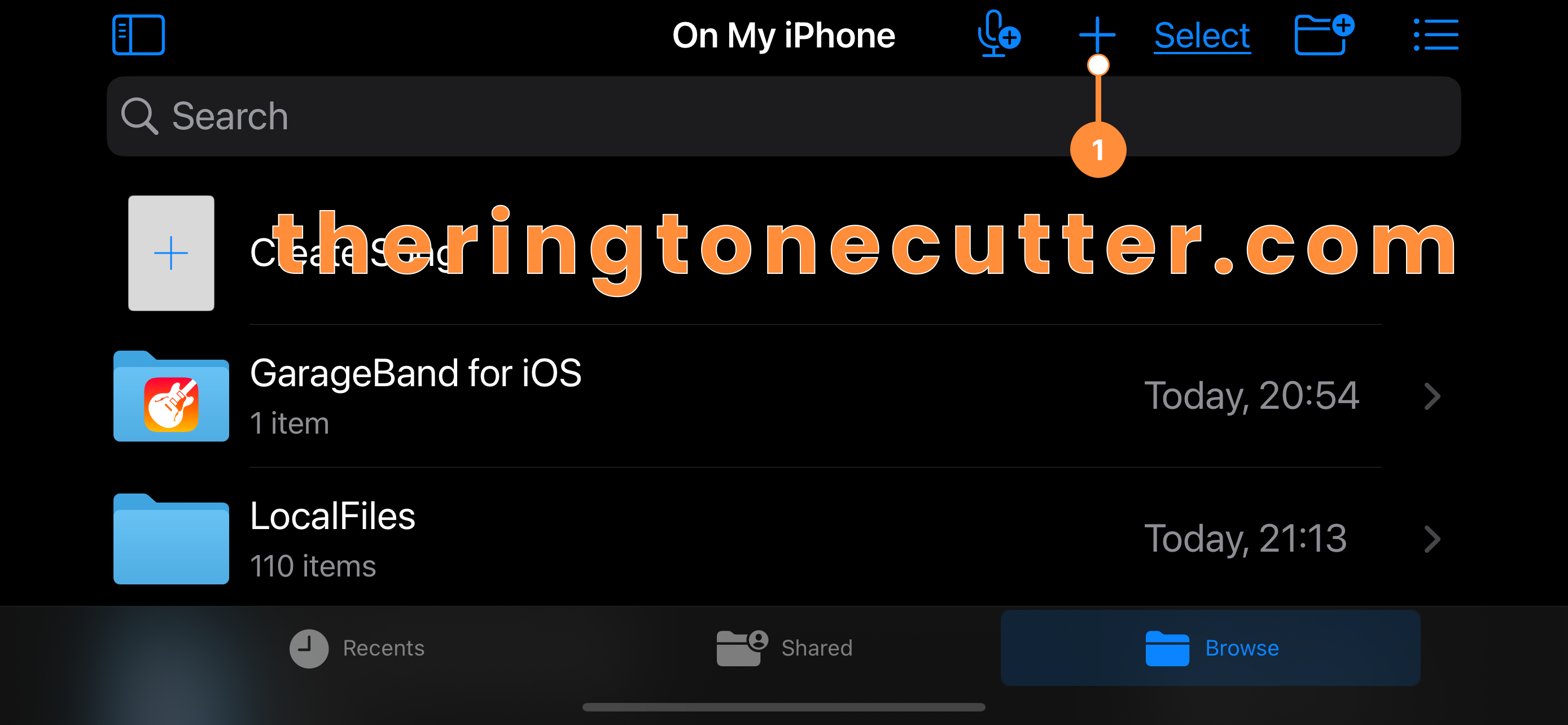
- Open GarageBand and tap the + icon.
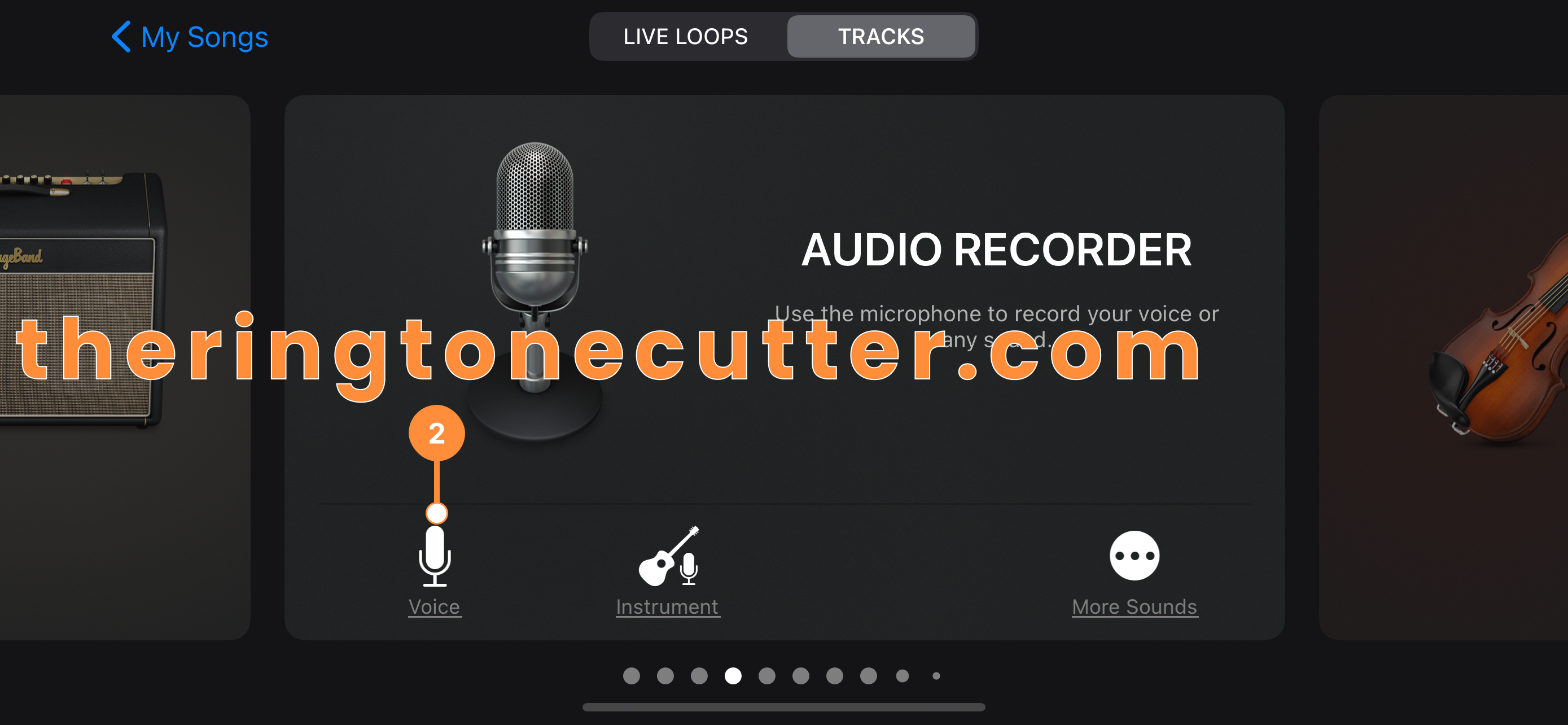
- Scroll Audio Recorder and tap Voice.
- Tap the Tracks view icon at top left.
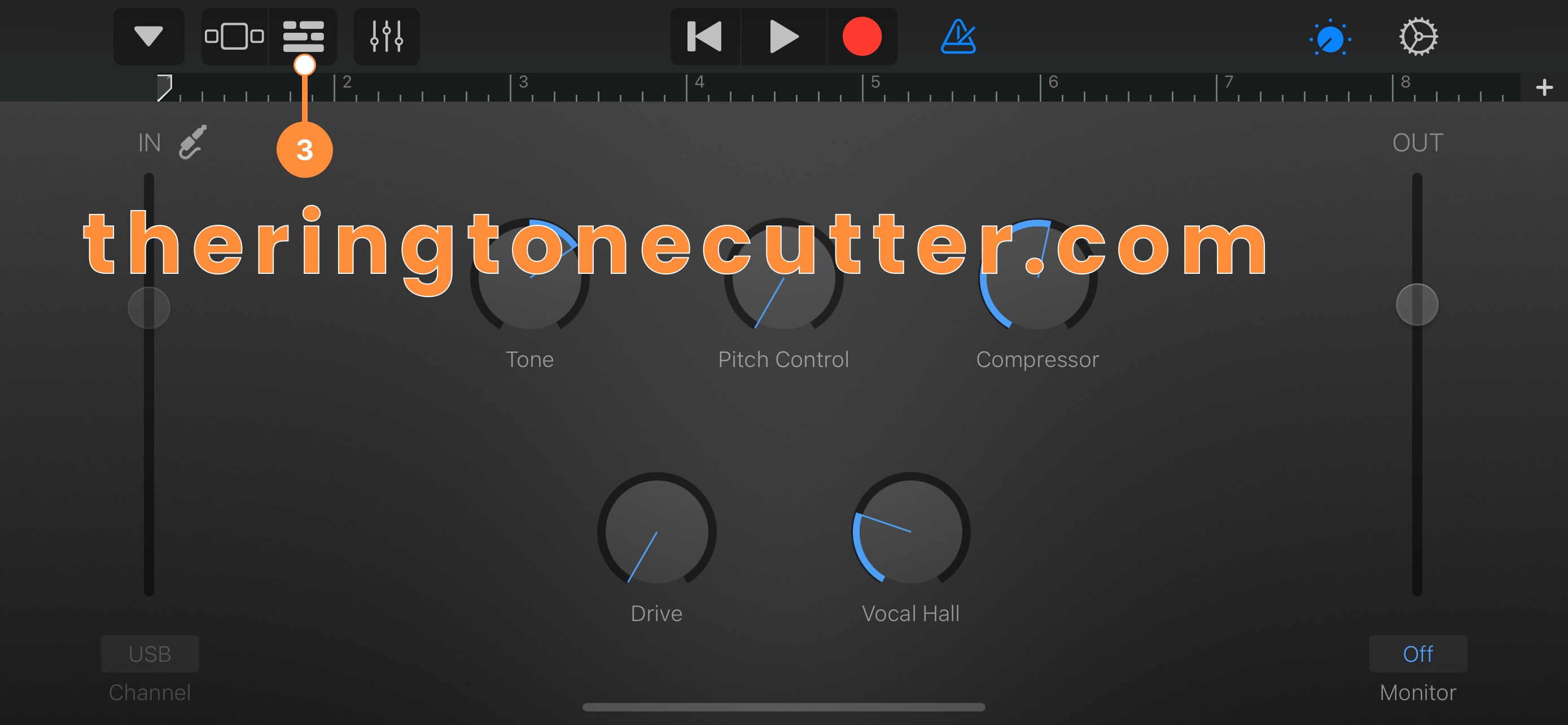
- Tap the Loops icon at top right.
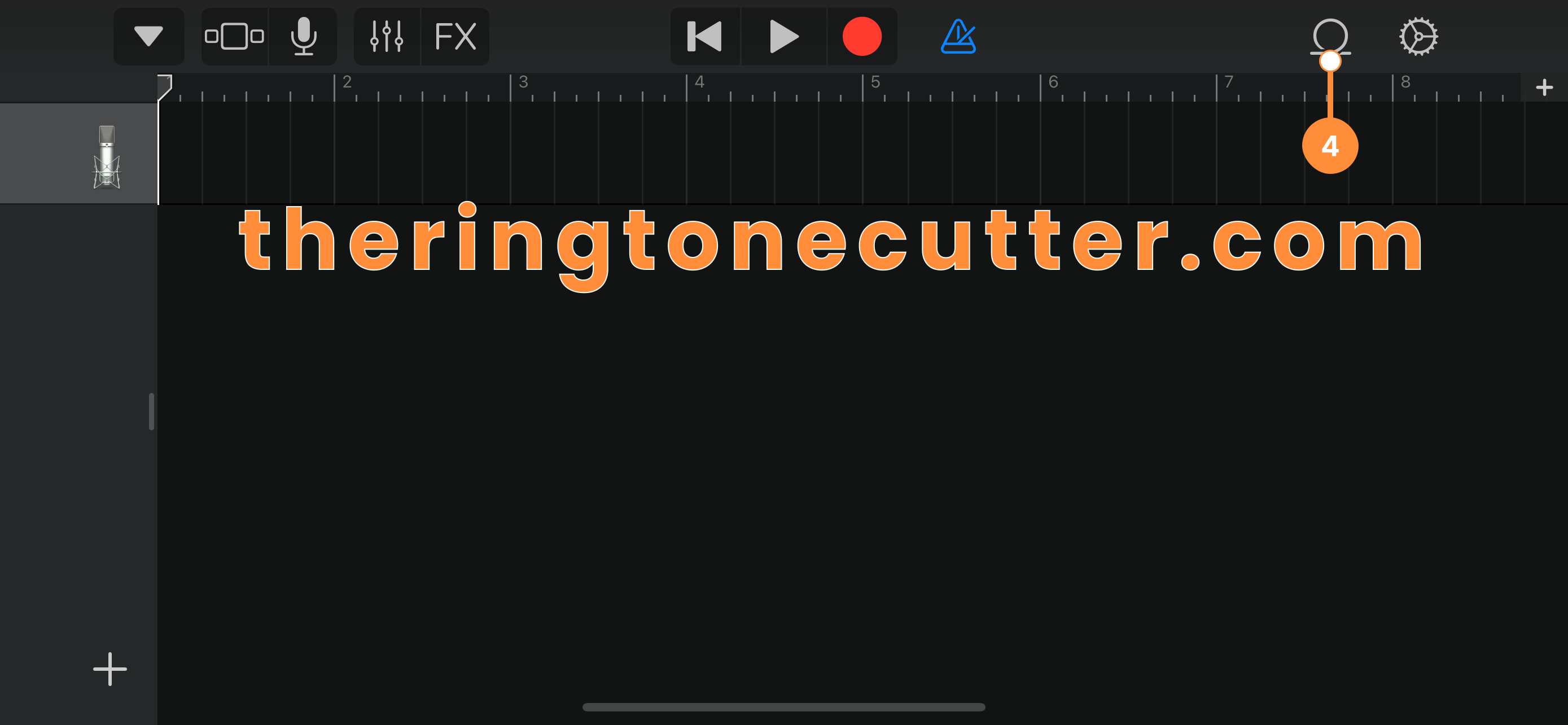
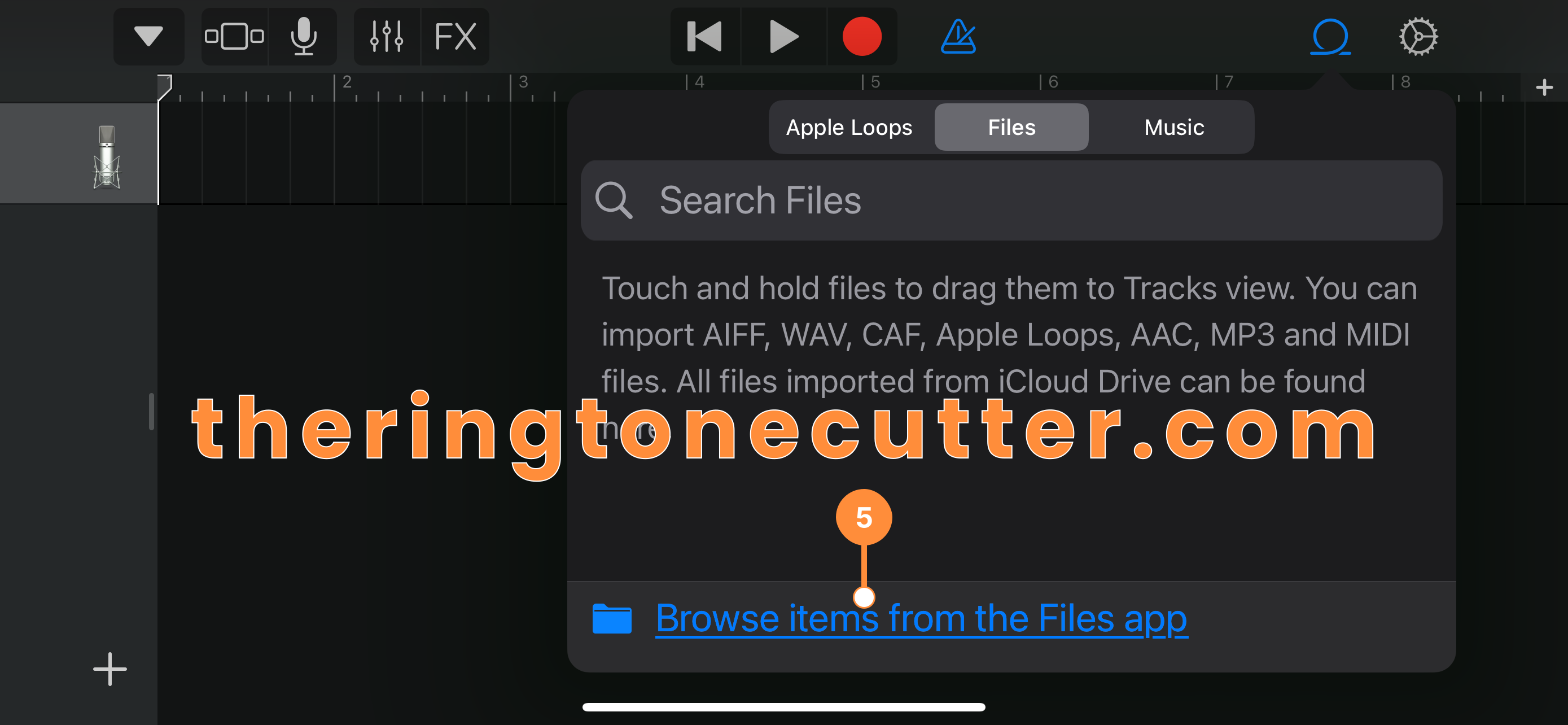
- Tap on the Files tab at top center then tap "Browse items from the Files app".
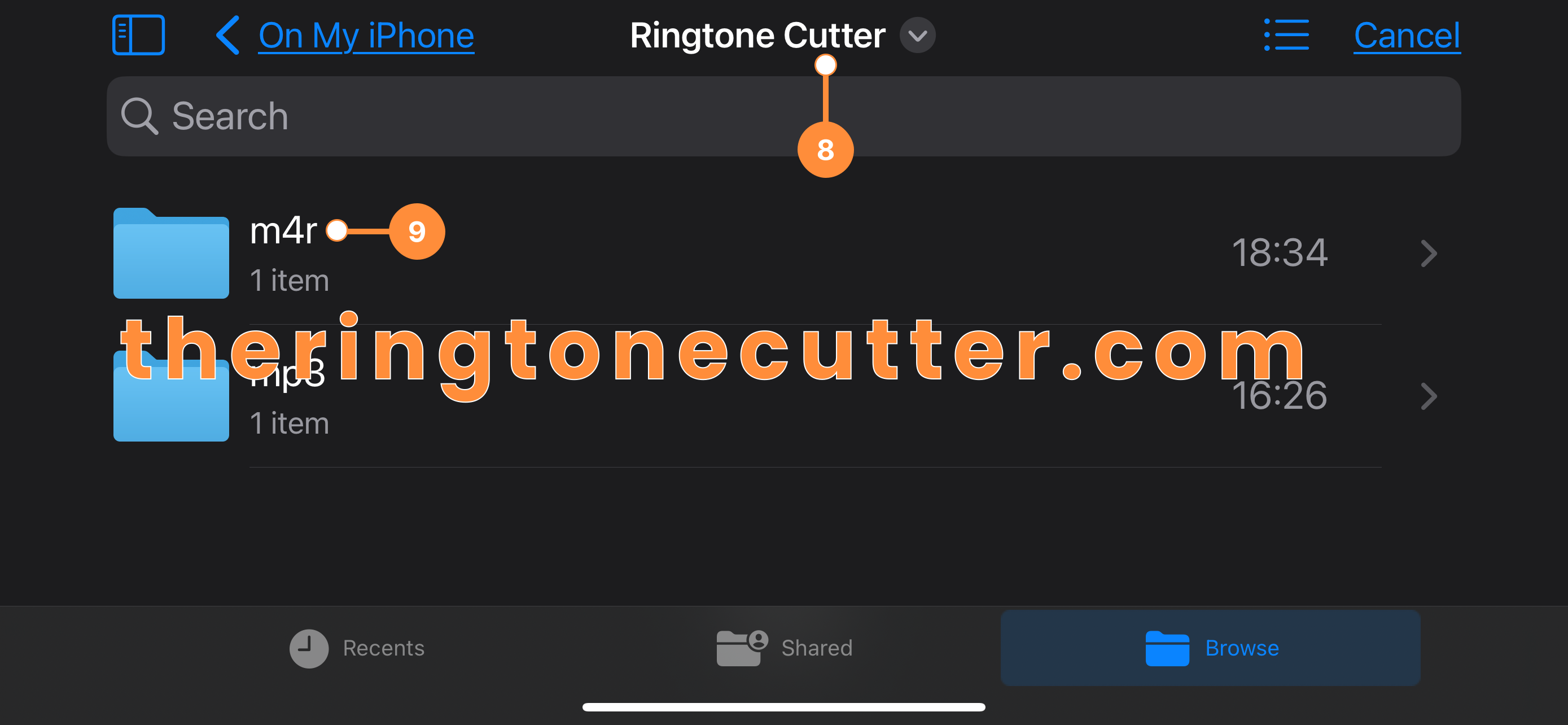
- Browse files On My iPhone.
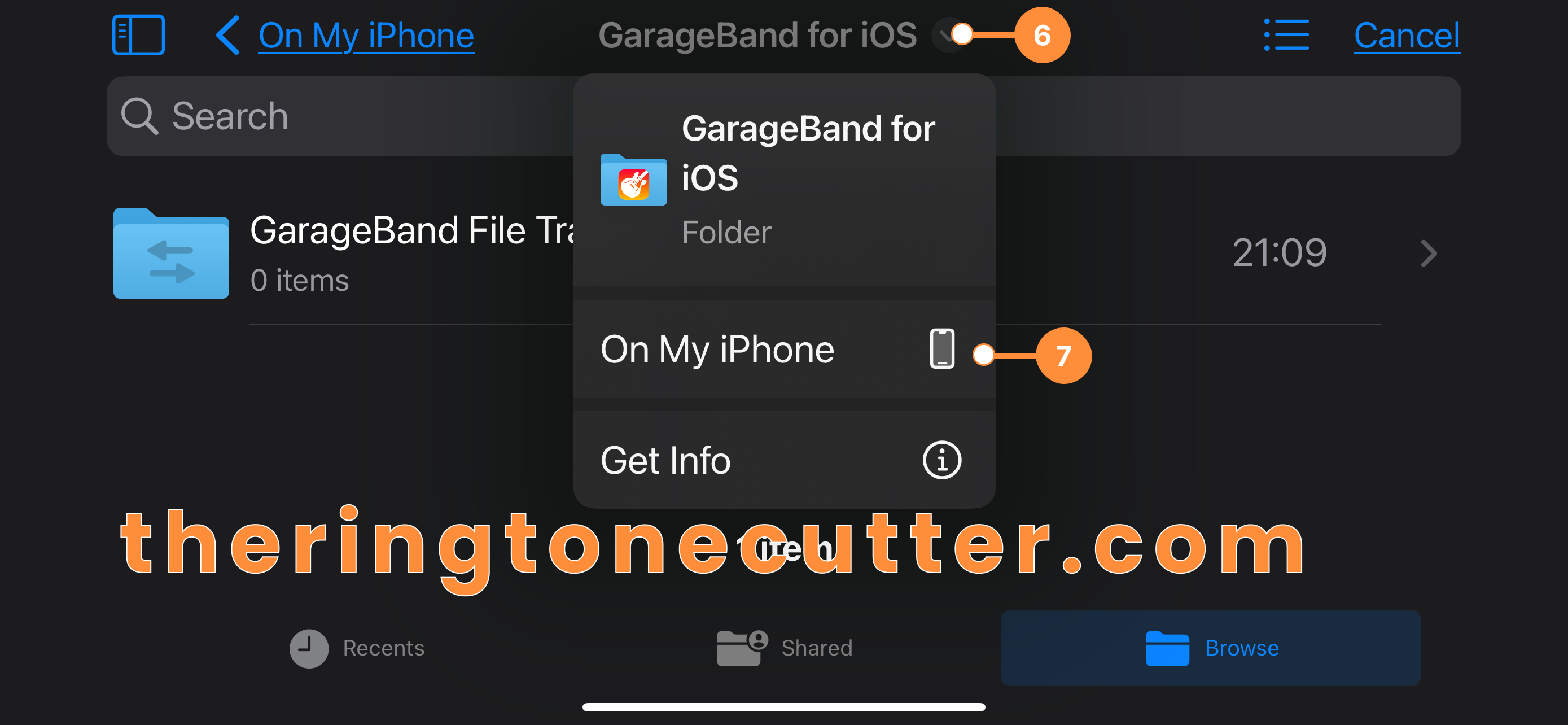
- Find the Ringtone Cutter folder. Then select the .m4r folder.
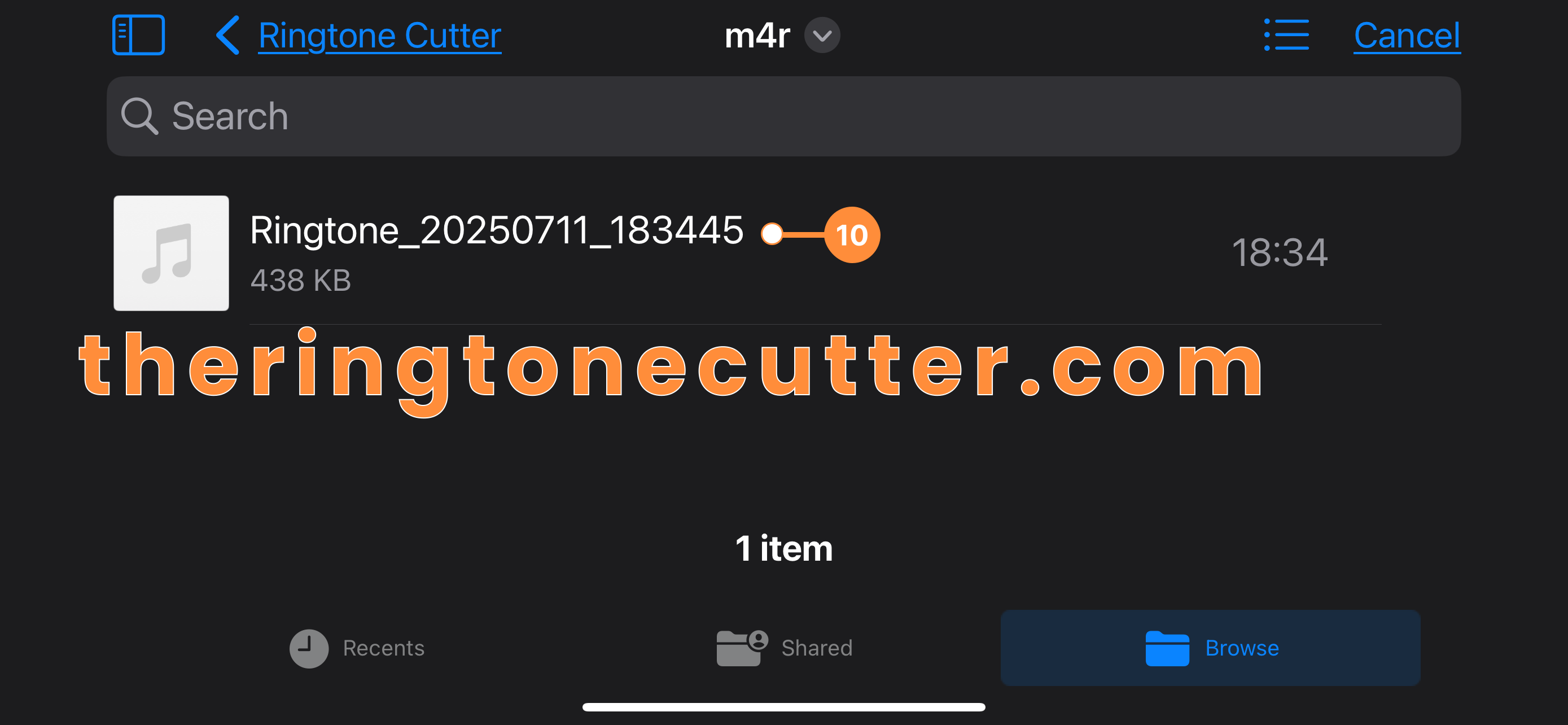
- Select the exported .m4r file.
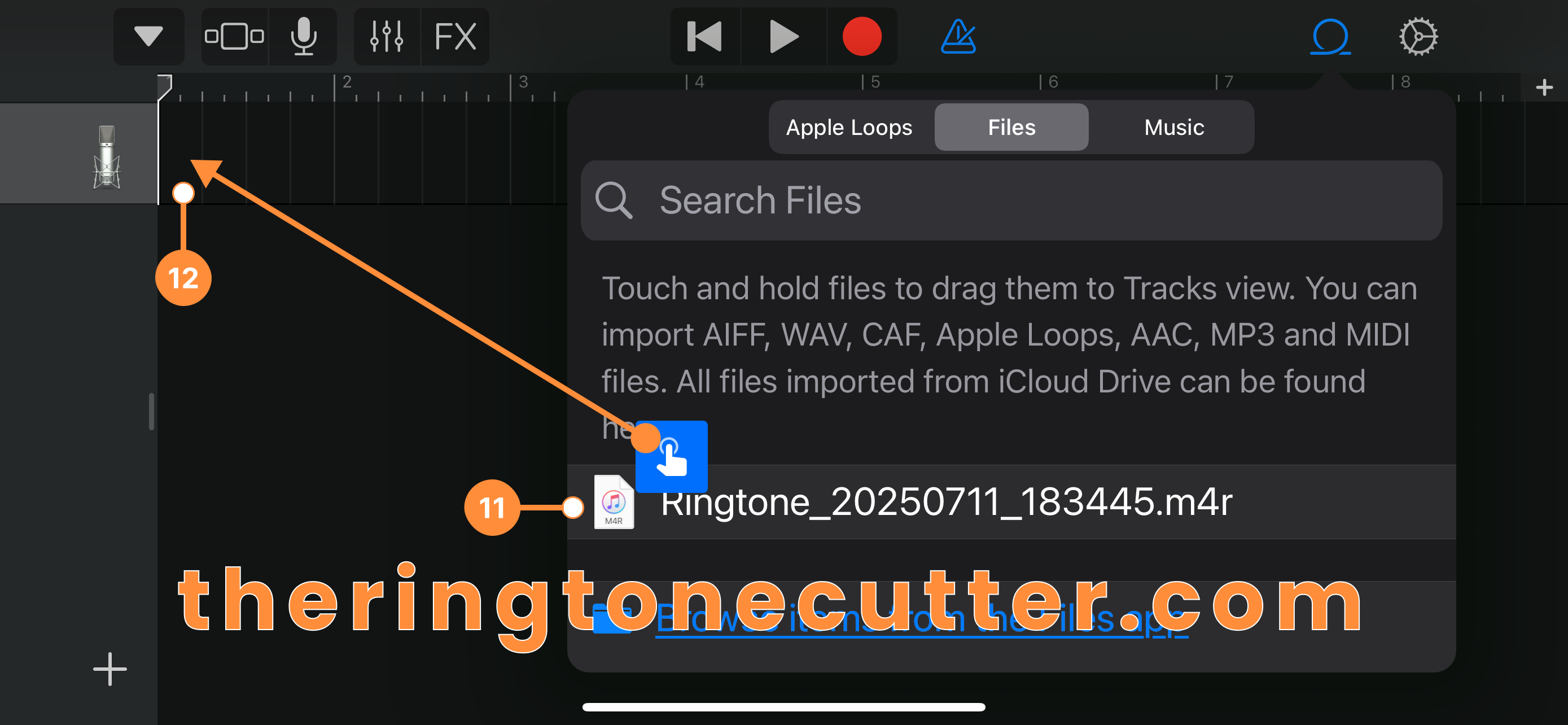
- Tap and start dragging the selected .m4r file, which will bring the Track view back up - drop the .m4r file at the top left corner.
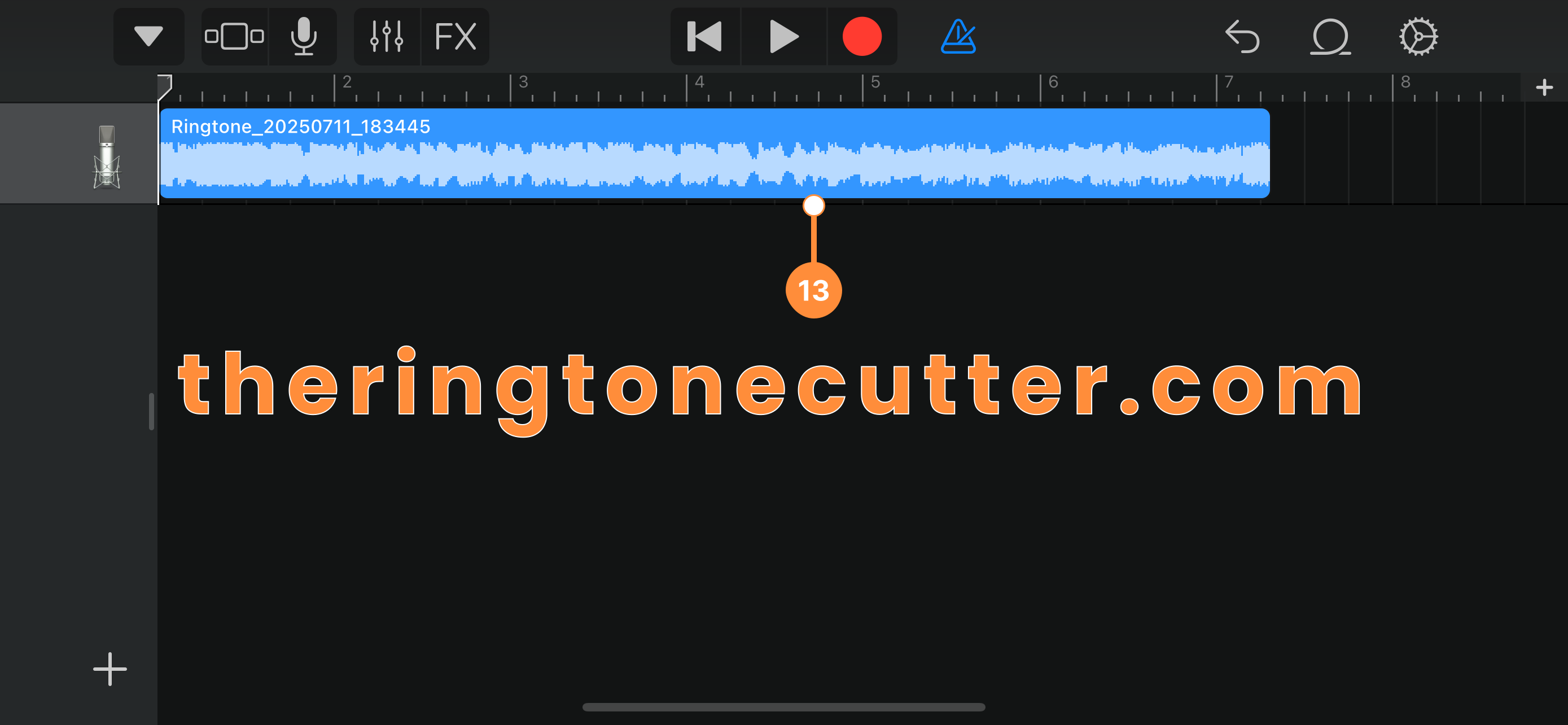
- Once released the .m4r file, you should see the file added to the track view like this.
- Tap the drop-down arrow at top left, then tap My Songs.
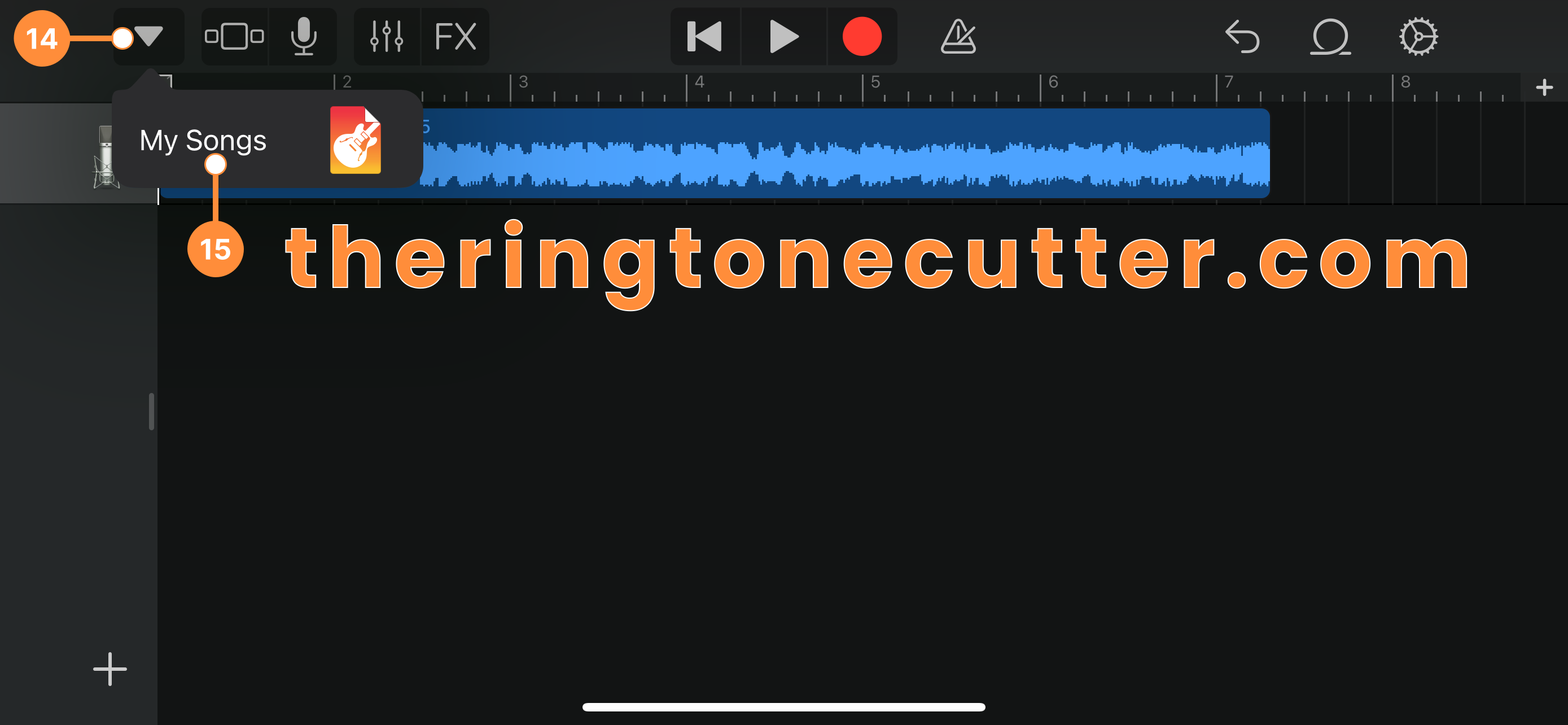
- You should see new My Song project created like this.
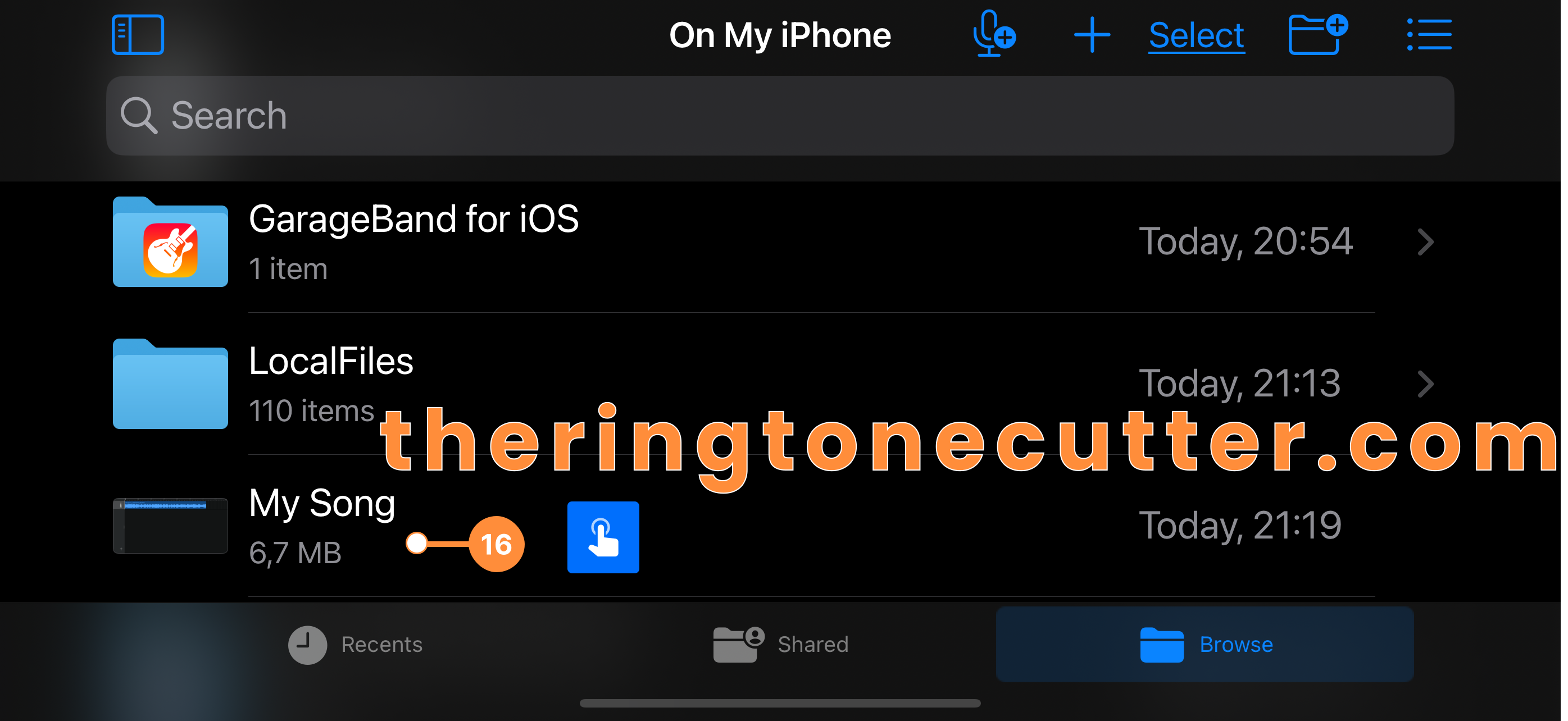
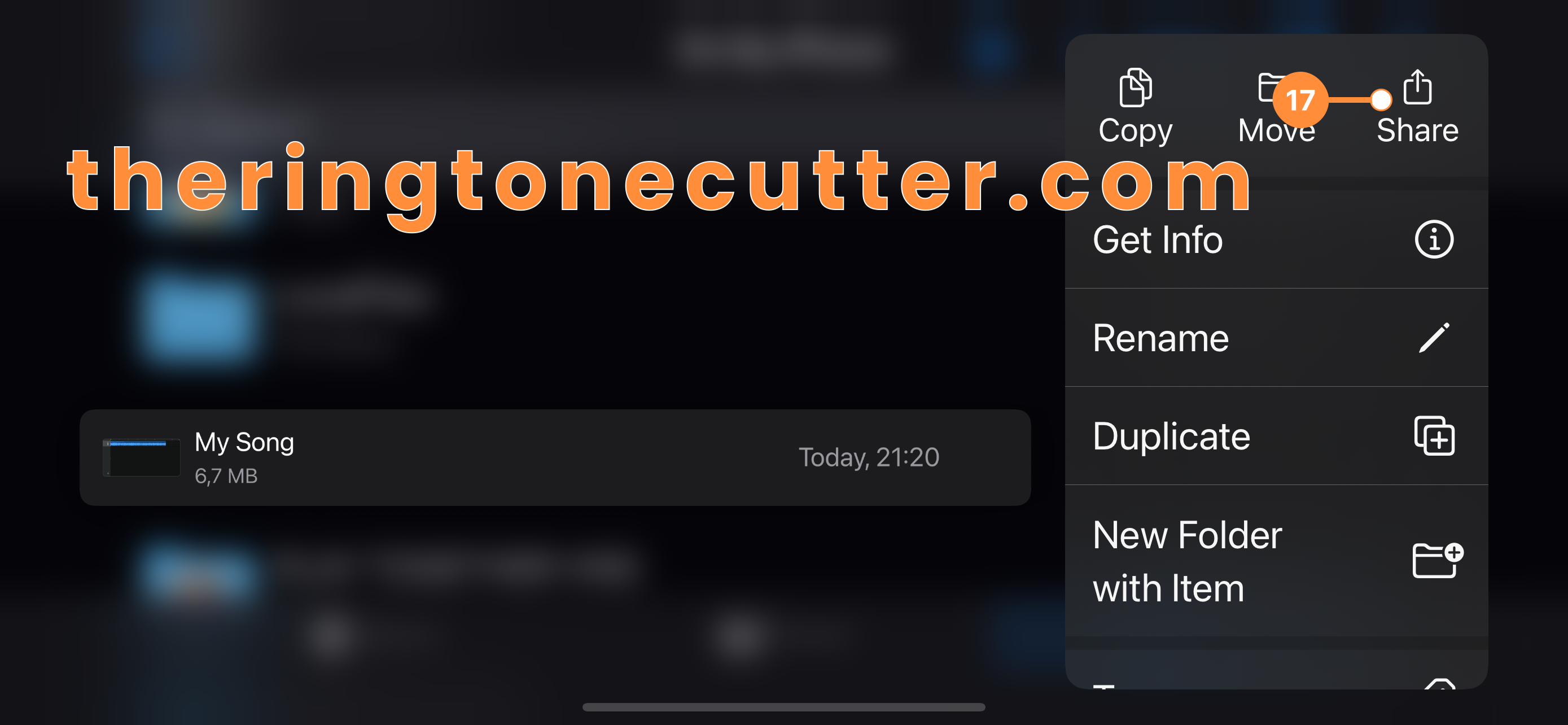
- Tap and hold the new My Song project you just created, tap Share.
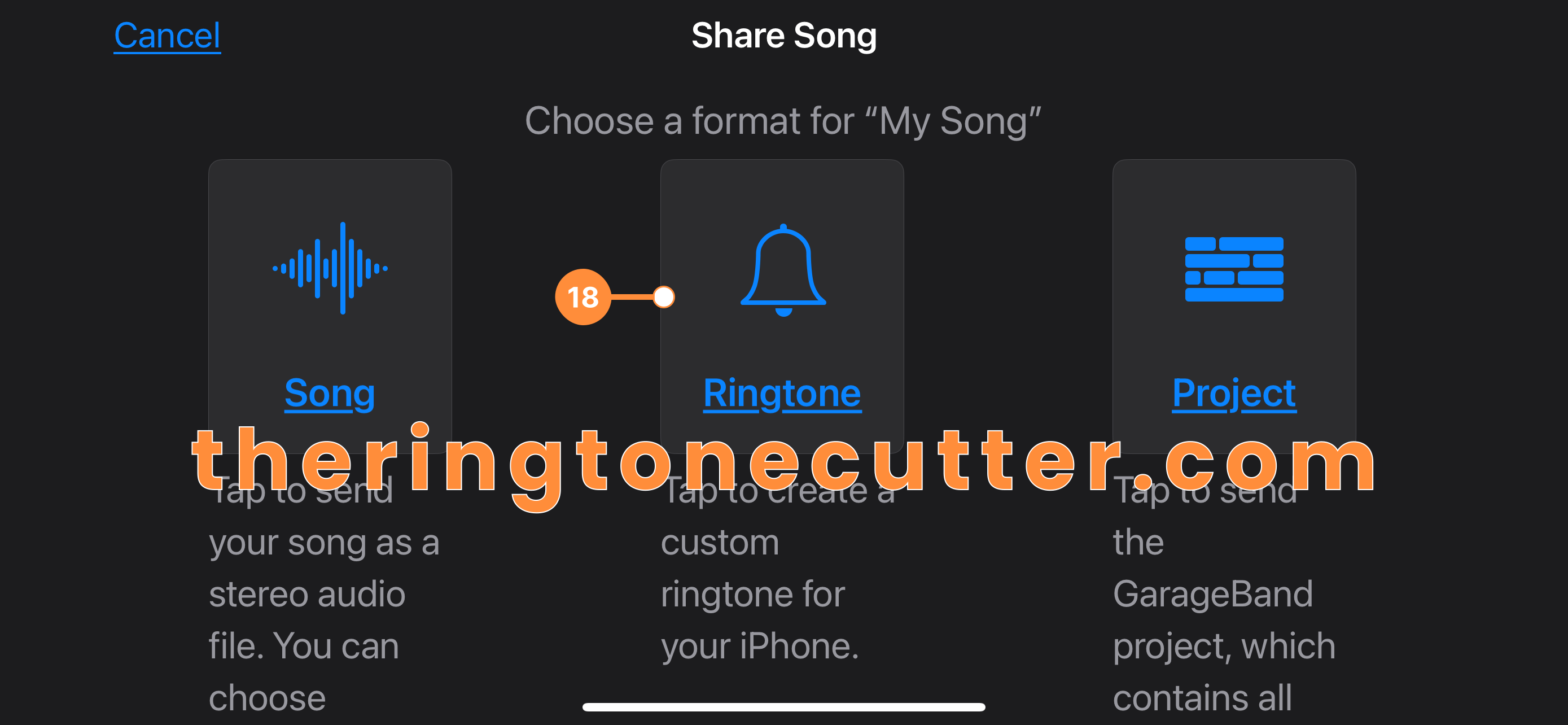
- Then select Ringtone.
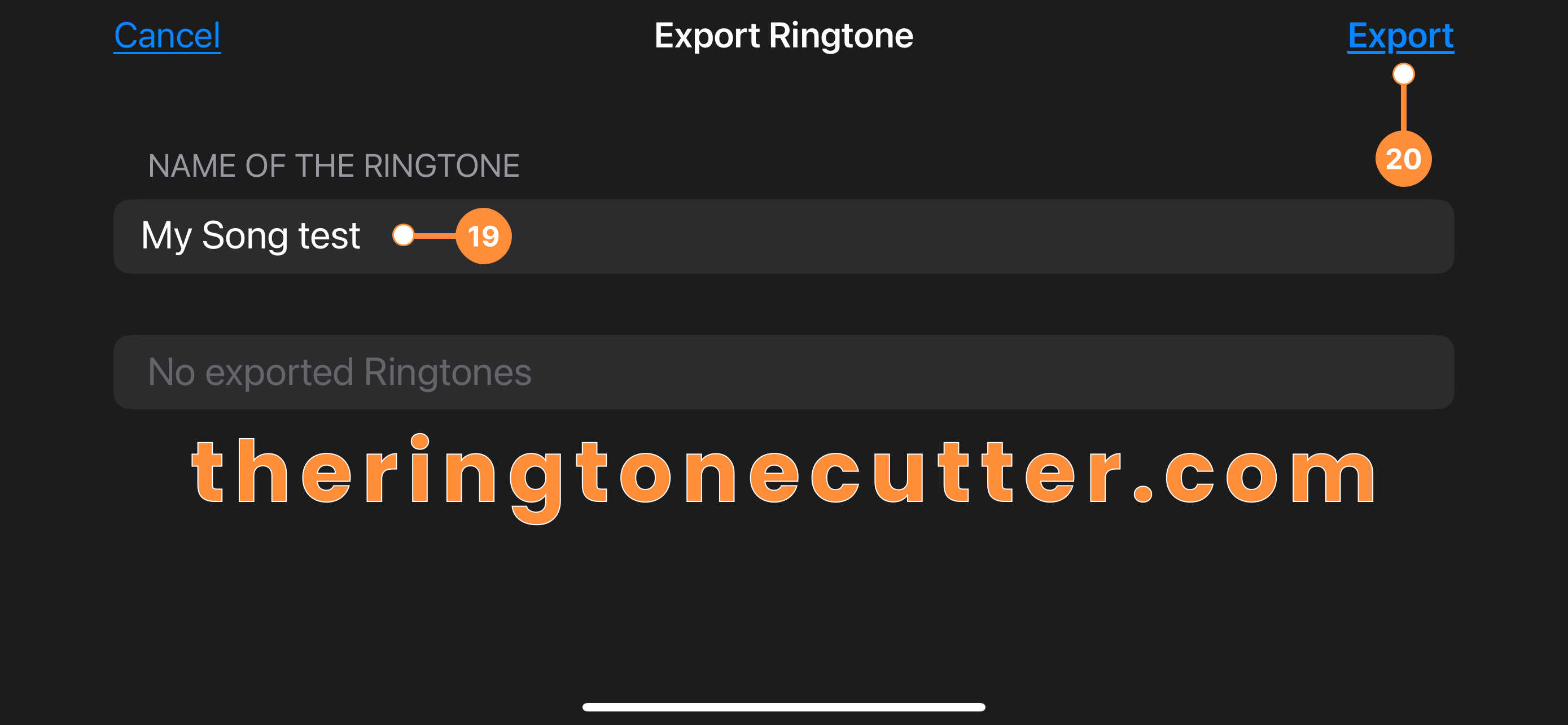
- Set the Name of the ringtone then tap Export.
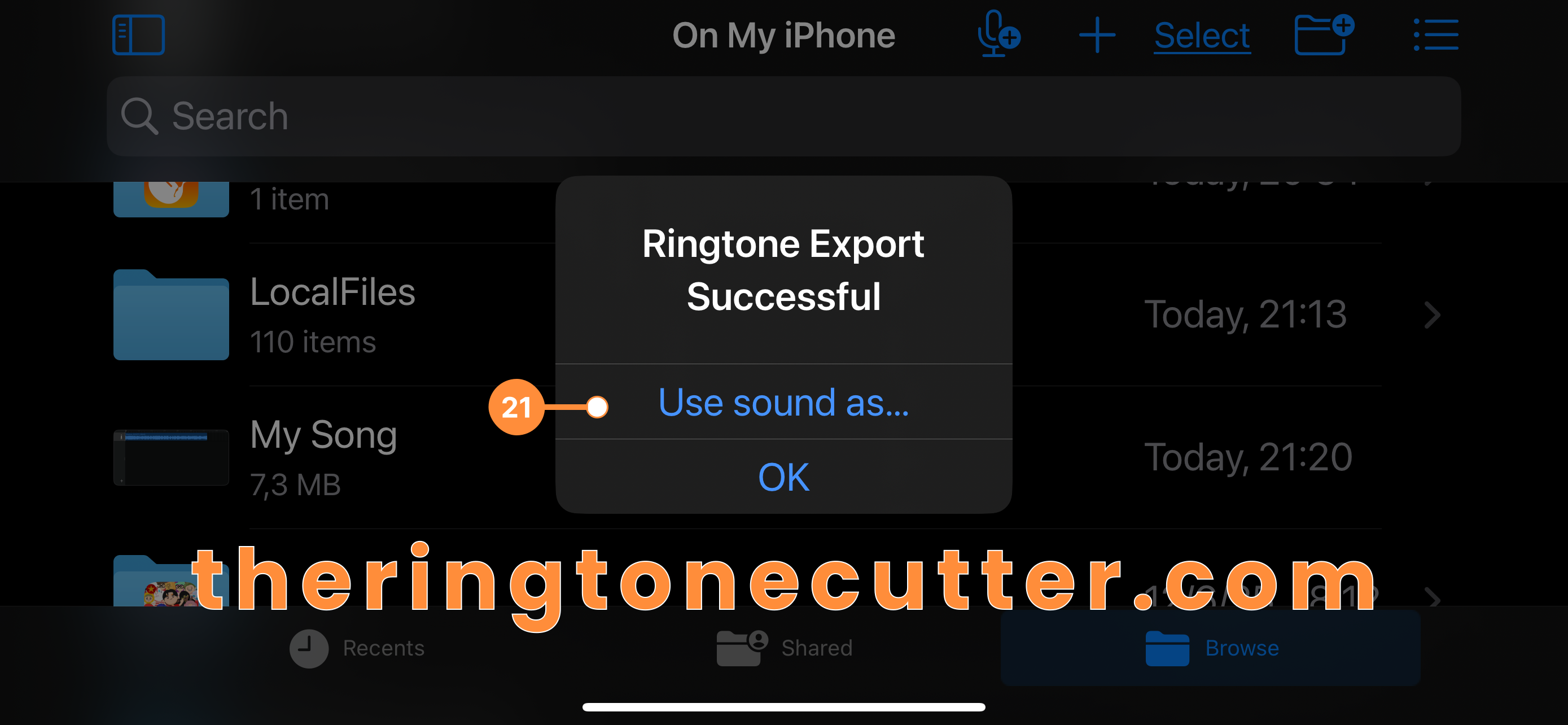
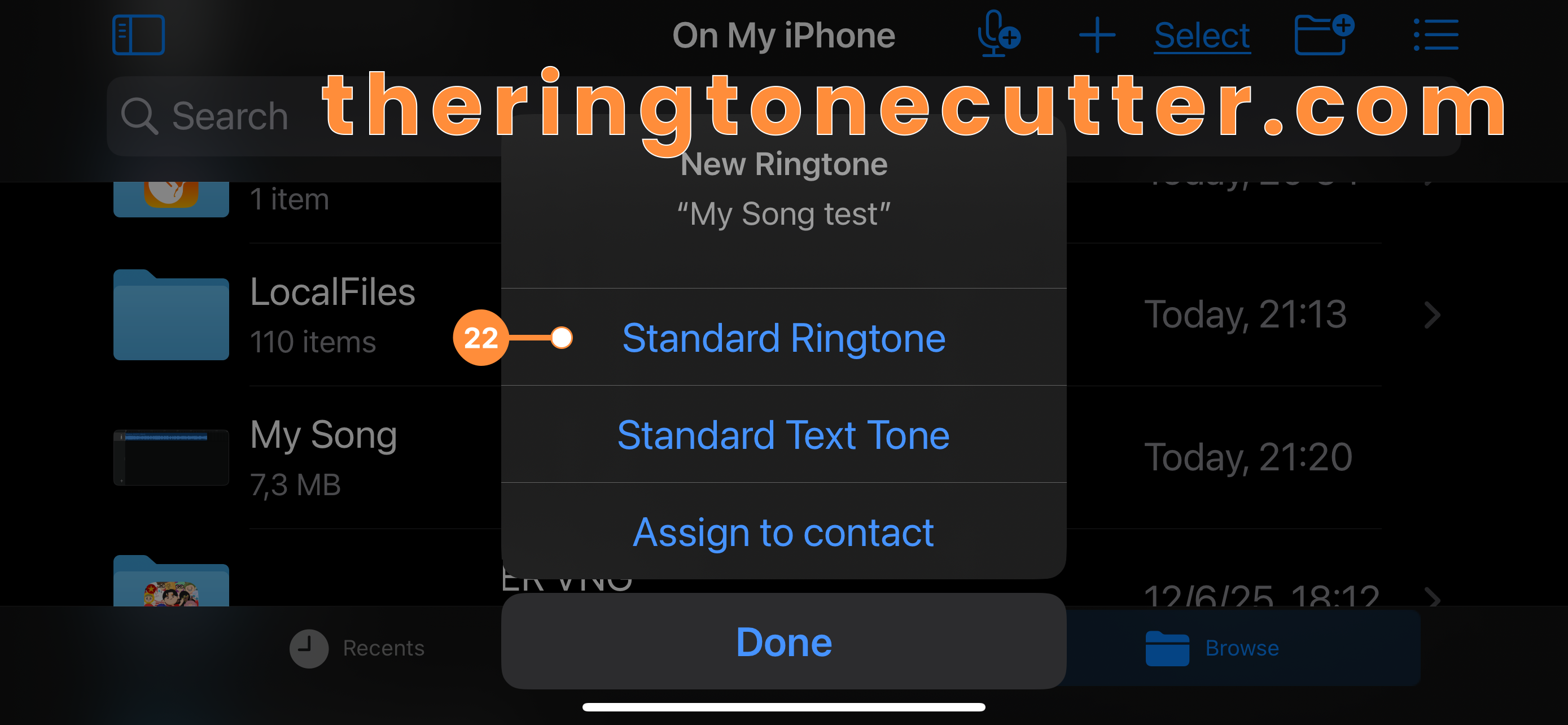
- When "Ringtone Export Successful" appears, tap Use sound as... then select "Standard Ringtone", "Standard Text Tone", or "Assign to contact".
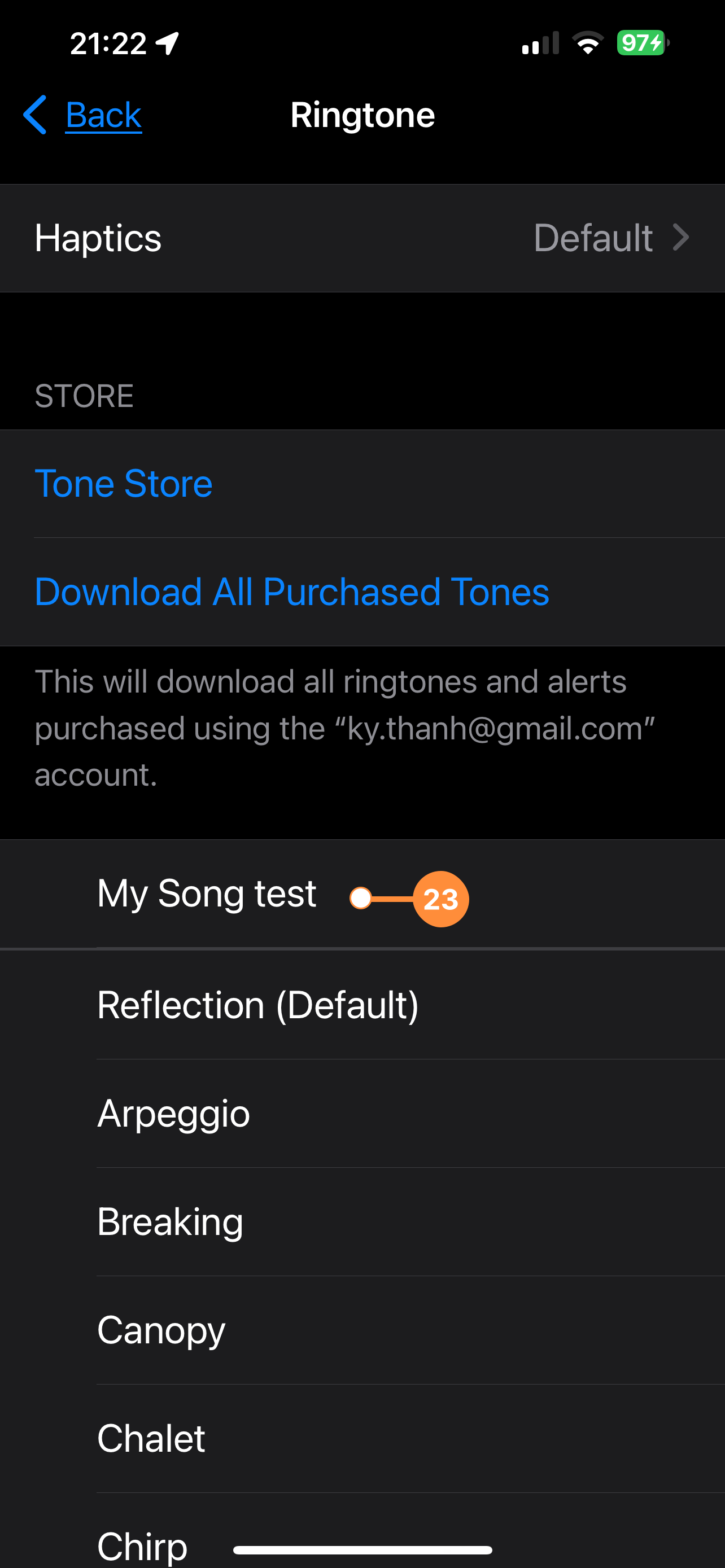
- Then goto your iPhone Settings > Sounds & Haptics > Ringtone, you should able to select the new ringtone like below.